



Take a screenshot
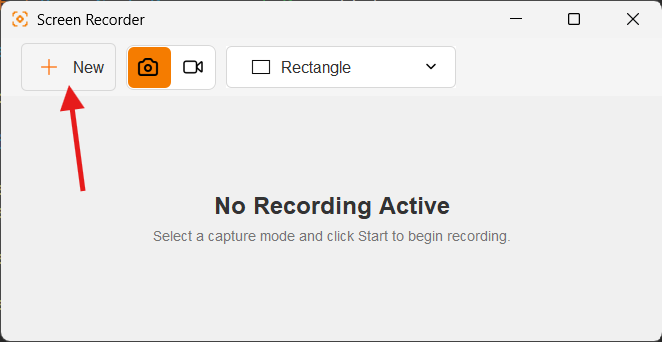
- Open Screen Recorder.
- In the toolbar, select the camera icon for
Screenshotmode. - Choose a capture mode:
Rectangle,Window, orEntire Screen. - Click New.
- Select the area. In rectangle mode, drag across the area; in window mode, point at the window to select it.
- Finish the selection. The image opens in the built-in image viewer.
After capture
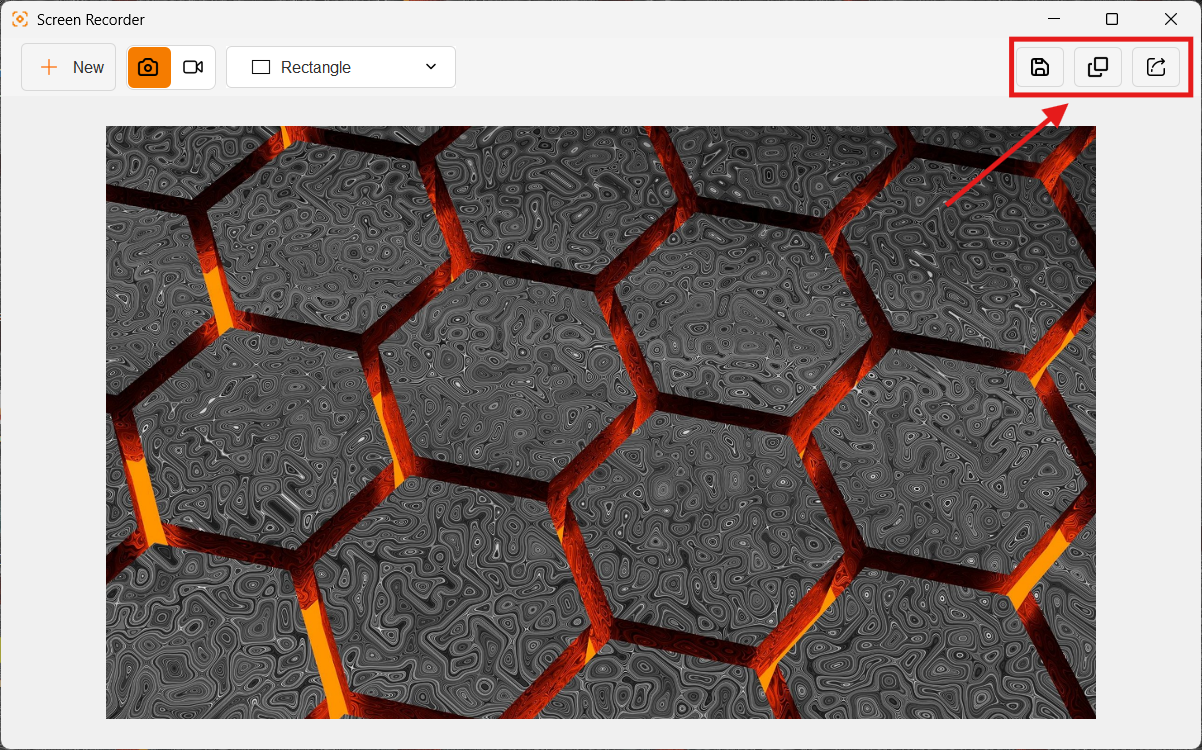
Use the toolbar actions to:
- Save a copy to a location selected in the file chooser.
- Copy the captured image file to the system clipboard.
- Open the sharing dialog.
Screenshots are initially saved using the configured save location. The current source default is the Windows desktop path in AppConstant.SAVE_LOCATION.
Was this helpful?
Supported
You feedback has been received!
Thank you for your help.