



Recording Controls
Capture Modes
The capture-mode menu is available from the main toolbar and the recording controls:
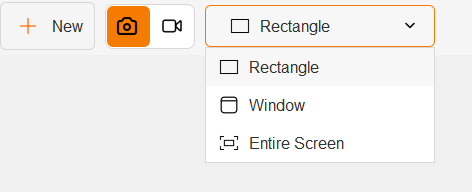
| Mode | Behavior |
|---|---|
Rectangle |
Draw a custom area on the screen. |
Window |
Select a window detected beneath the pointer. |
Entire Screen |
Capture the full screen. |
Capture mode cannot be changed while a video is recording or paused.
Screenshot Mode
Screenshot mode hides the video transport controls. After a valid area is selected, the application captures the area and opens it in the image viewer. The preview is scaled to fit within approximately 85% of the screen while preserving the image dimensions.
Use the action buttons in the main window to save a copy, copy the image file to the clipboard, or share it.
Video Mode
Video mode provides these controls:
Start: starts the countdown and then begins capture.Pause: pauses video and audio capture.Resume: continues a paused recording.Stop: ends capture and finalizes the MP4 file.- Microphone toggle: enables or disables microphone samples in the mixed audio stream.
- Speaker toggle: enables or disables Windows system-audio samples in the mixed audio stream.
The default target frame rate is 50 FPS. The recorder clamps programmatic frame-rate changes to the range 1 to 60 FPS. The current toolbar does not expose a frame-rate control.
Both audio toggles can be changed during a recording. The audio stream is created when recording starts, so disabling a source produces silence for that source rather than removing the stream.
Playback
Completed videos open in the JavaFX-backed video player. The player includes a timeline, elapsed and remaining time, play controls, and a volume popup with mute and volume adjustment.
Sharing
The share dialog supports:
- Copying the captured file to the clipboard.
- Opening a desktop share action.
- Sharing through WhatsApp, Telegram, email, and Twitter/X when the corresponding desktop or web handler is available.
- Nearby sharing through LocalSend device discovery.
Nearby sharing reports discovery and transfer progress. Select a discovered device to send the file, and cancel an active transfer when necessary.
Was this helpful?
You feedback has been received!
Thank you for your help.